Take reservations online — a table, a room or a piece of equipment, in real time
A reservation runs on the same engine as an appointment: you list the thing that can be reserved — a table, a treatment room, a court, a rental unit — as its own asset with its own capacity, and customers pick a live, available time on your site. No phone tag, no double-booked table for two different parties.
What makes it a reservation, not just a calendar entry
The asset is the thing you're selling
Genuinely live availability
One reservation per asset, guaranteed
Take payment on the spot if you want to
Rooms, tables and equipment are resources, the same way staff are
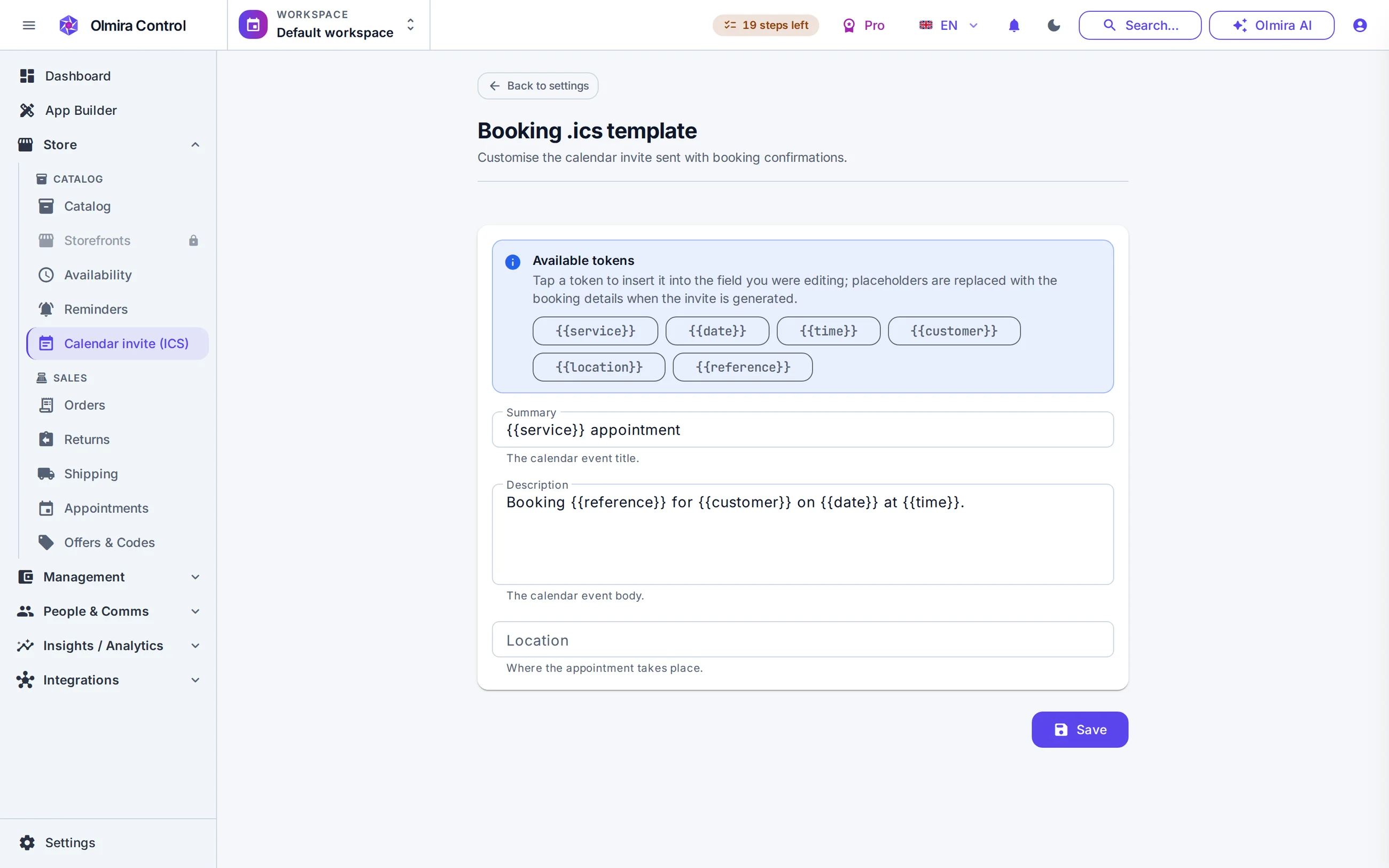
Underneath, Olmira's booking engine only knows about resources with a type — staff, room or equipment — and a service that uses one or more of them. For reservations, you flip that around: the room or the equipment is the service. A private dining table becomes a "Room" resource with a capacity of one party at a time; a projector or a kayak becomes "Equipment." List several of the same kind — four courts, six massage rooms, a fleet of bikes — and Olmira automatically offers whichever one is free for the requested time, the same cross-checking that stops a staff member from being double-booked across two different services. If a specific unit matters (this exact room, that particular table), you can also reassign a booking to a named resource by hand from the calendar.
What the customer actually sees and does
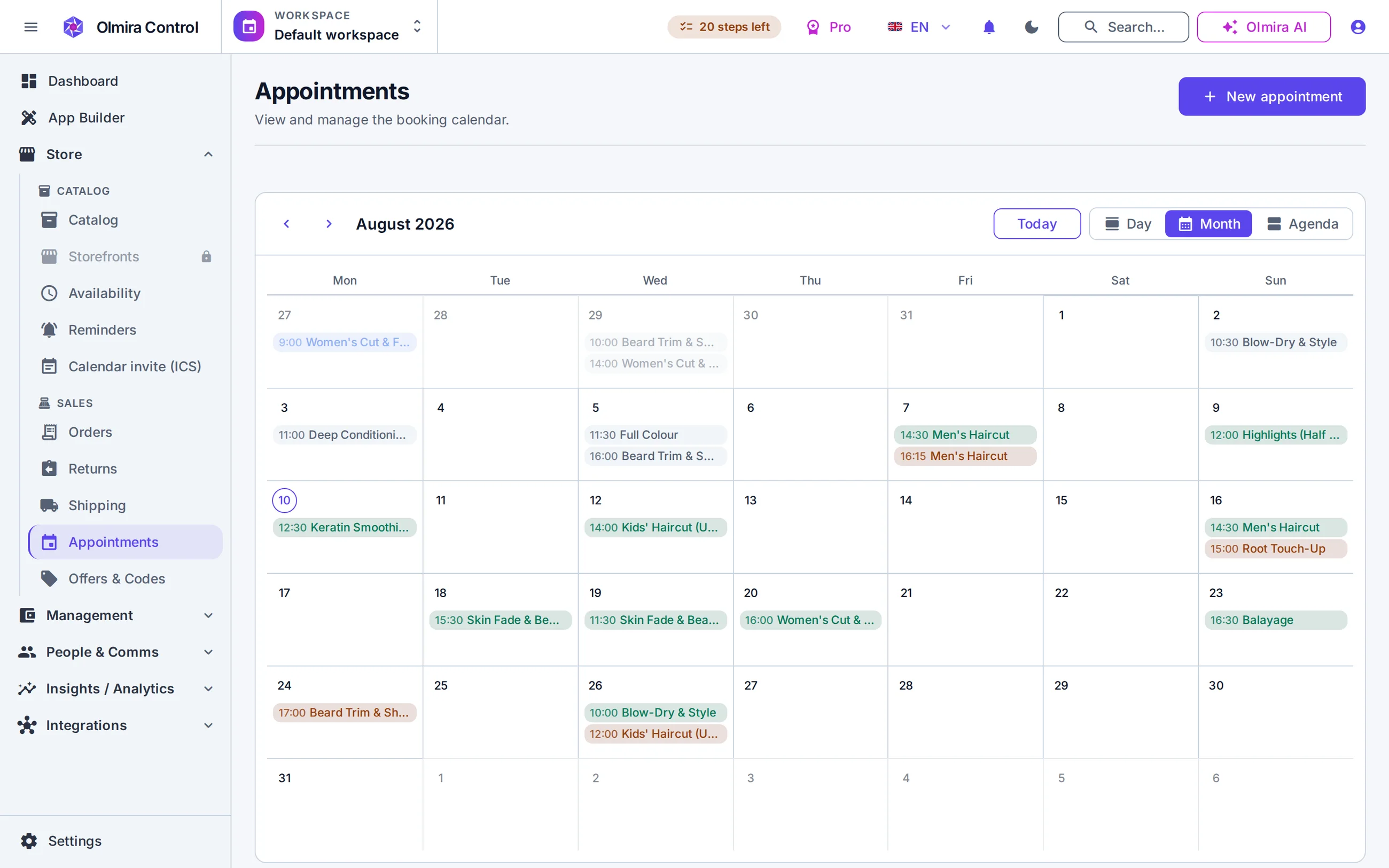
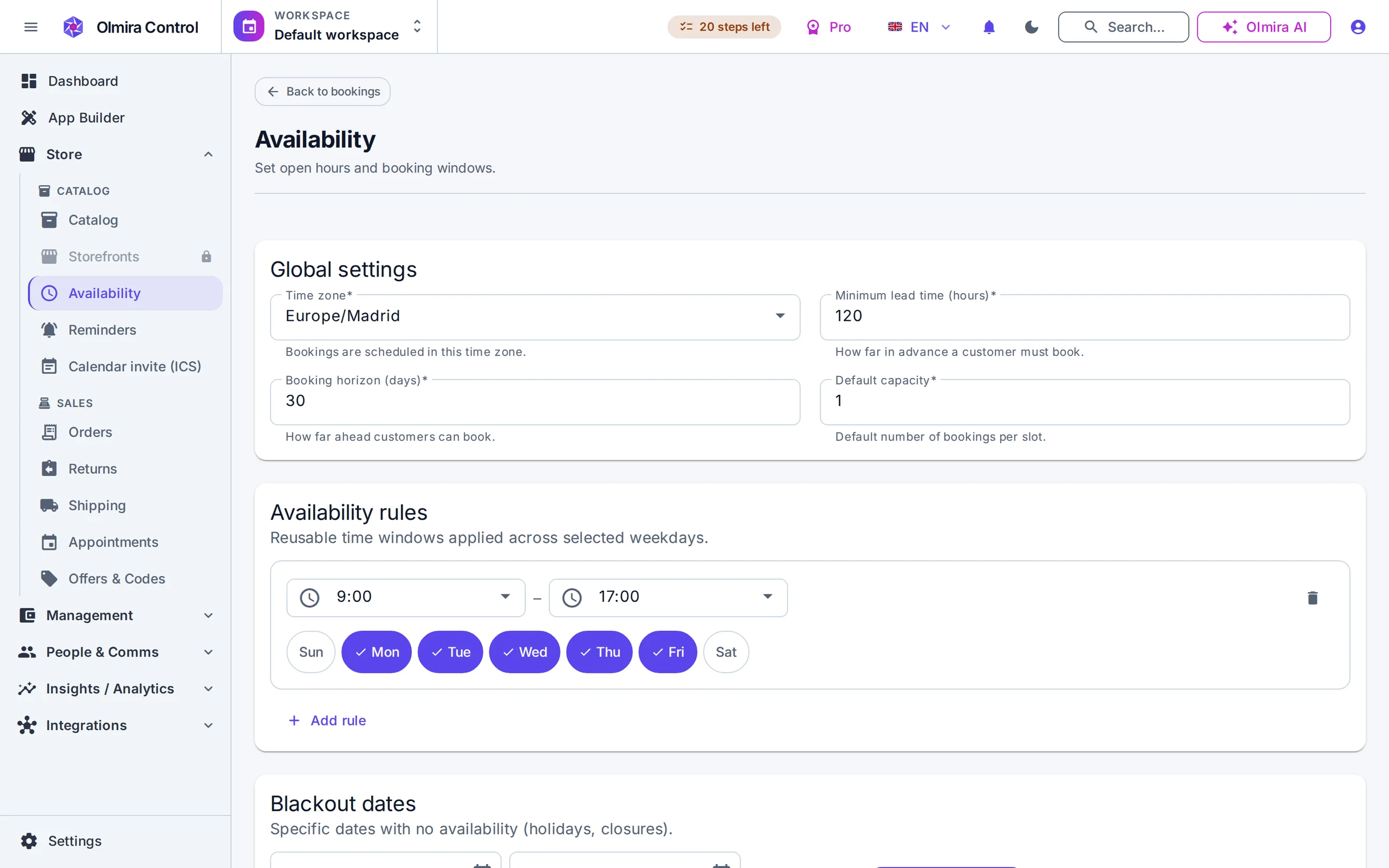
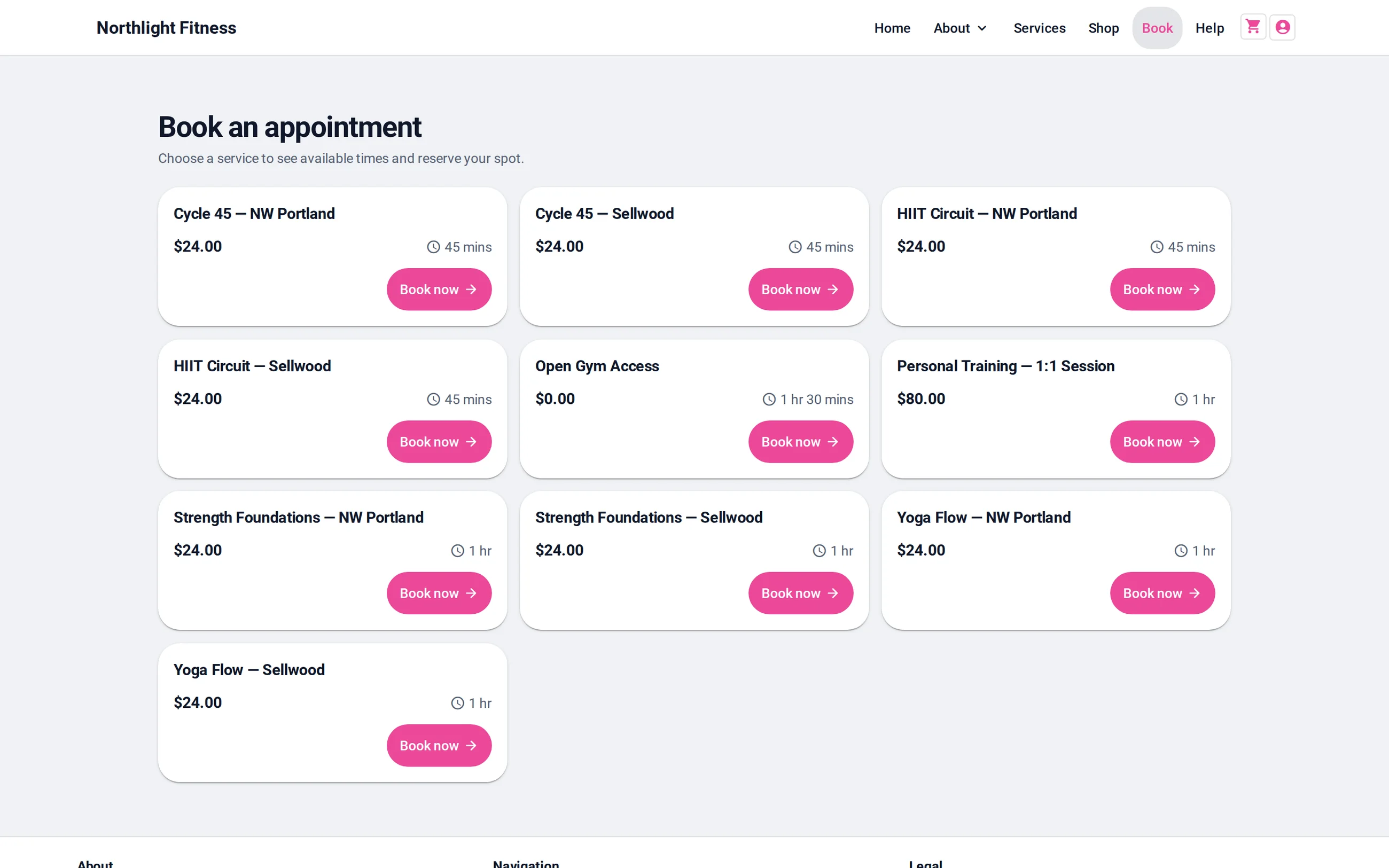
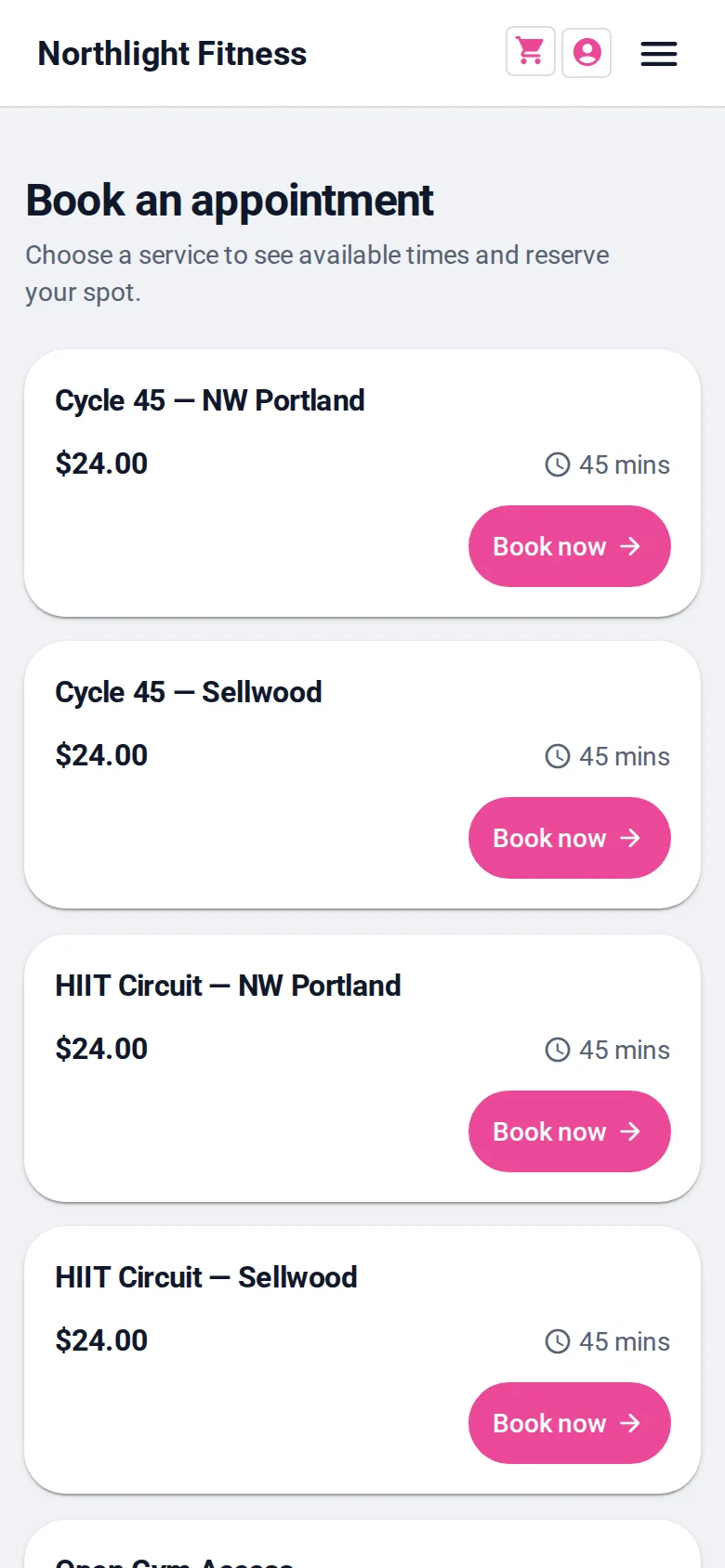
On your site, a customer picks a date, sees the real open times for that asset, and confirms — name, email, phone and an optional note. That note field is where a party mentions its size or any special request today; there is no dedicated party-size selector in the booking form yet, so if headcount changes how you seat people, ask for it there or follow up once the reservation lands. After confirming, they get an email with a calendar (.ics) invite; you get the reservation in your calendar, colour-coded by status, editable like any appointment — confirm it, reassign it to a different table, or cancel it. Self-service cancellation and rescheduling are available if you allow them, using just the reservation reference and email, so a customer can free up their own slot without calling you.
Reserved from a phone, start to finish
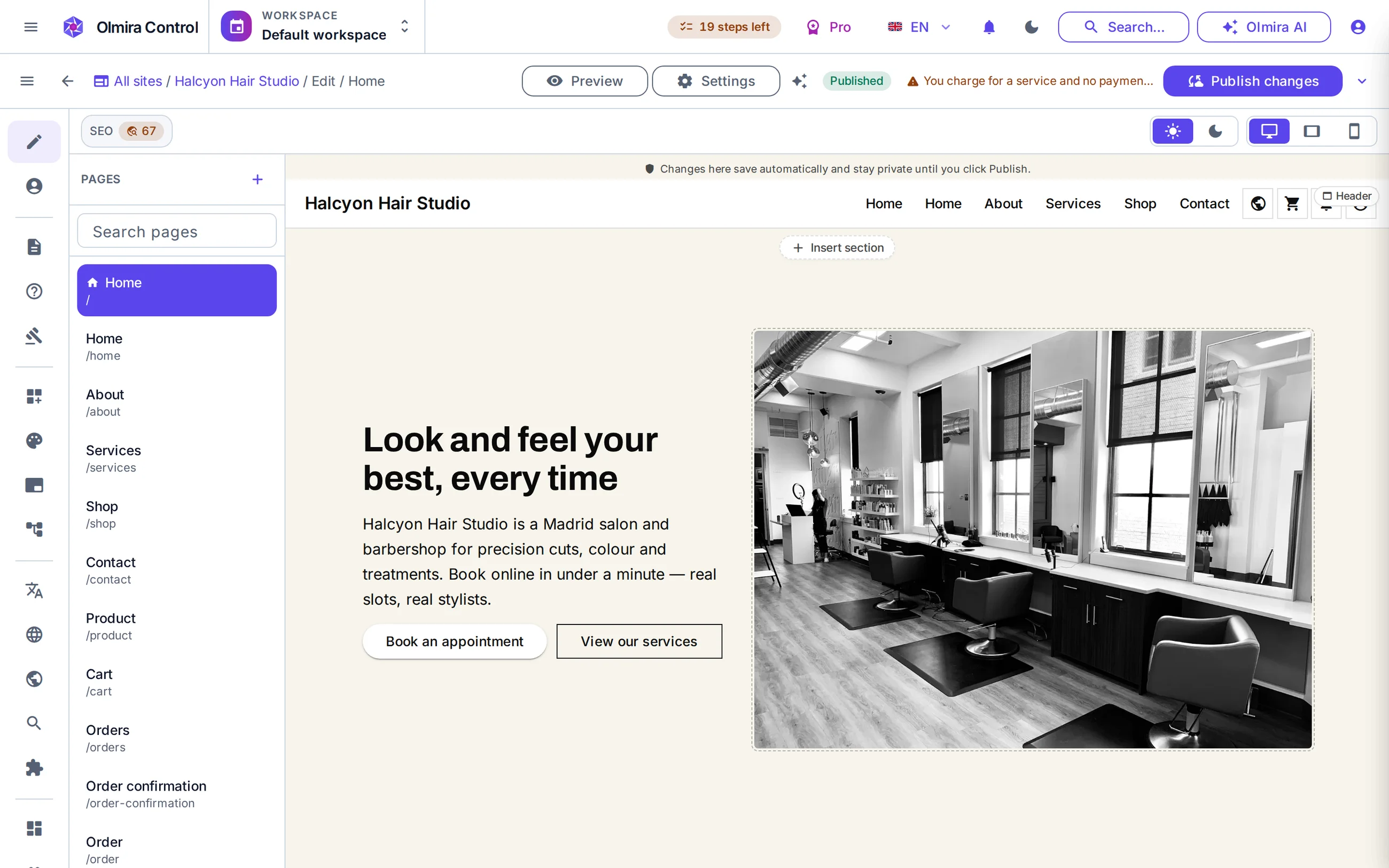
The booking page on the Business demo — a charter operator with real assets and capacity behind it. Customers see what's reservable and book it from the phone in their hand. Open the demo and try it.
Setting up your first reservable asset
1
Add your resources
2
Create the reservation listing
3
Set hours and rules
4
Publish
What it costs
Reservations use the same entitlement as appointments: included with Bookings on Pro and above, or the Bookings & Payments add-on on Starter at €15/month if you also want to charge at the moment of booking. There's no separate reservations charge — it's the same Scheduling capability, applied to a room, a table or a piece of equipment instead of a staff diary. Every number is on the pricing page.
Reservations share the calendar with everything else you book
Booking deposits
Online store
Not with a dedicated field today — the booking form has name, email, phone and a free-text note, so ask them to mention party size there, or confirm it with a follow-up. If exact headcount changes how you seat or staff a reservation, plan for that extra step.
The capacity check and the reservation write happen in one locked database transaction on the server. Whoever's request lands first gets the slot; the other is told it's taken before any payment is attempted — never a race decided in the browser.
Yes — turn on payment at booking for the reservable asset and Olmira charges the price you've set, in your own Stripe account, the instant the reservation is made. It's the identical mechanism booking deposits describes.
No. Reservations run on the Scheduling capability — included with Bookings on Pro and above, or the Starter Bookings & Payments add-on — independent of the full six-way online store.
If you allow self-service changes, yes — by reservation reference and email, no account needed. The new time is checked for availability exactly like a fresh reservation, so it can't silently double-book another party.
Anything you'd model as a room or a piece of equipment: dining tables, treatment rooms, courts, studios, bikes, kayaks, AV gear — each with its own capacity and its own price. Reservations and appointments share one calendar, so a table and a hair appointment can sit on the same day view.